The Ultimate Cheat Code: Using AI to Generate Slide-Ready SVGs
This is an operator’s account, not advice.
The Real Problem With Slides Isn’t Writing
Slides are not hard because of the words.
They are hard because of the graphics.
Anyone who has built real slide decks—briefings, executive updates, training material—knows the friction:
- Diagram tools are slow
- Visual consistency is fragile
- Revisions destroy layouts
- “Just one more change” costs disproportionate time
The bottleneck is not thinking.
It is diagram execution.
Third-Party Graphics: Helpful, but Costly
I tried third-party image and icon sources—both free and paid. They worked, but at a cost:
- Endless searching
- Manual recoloring to match themes
- Non-transferable assets that forced rework
- Repeating the same effort across decks
Eventually, the time spent managing graphics outweighed the value they provided.
That is where I started using AI differently.
Prompt:
“Create a futuristic icon that depicts encryption.”
Output (raster image):

This worked—mostly. As I became more comfortable, I pushed further: more complex scenes, people, scenarios. The results were acceptable, even when imperfect (extra fingers, odd proportions). That level of error was already industry-tolerated.
Then I crossed a line.
I tried to replace the graphic designer entirely.
Simple prompts worked.
Complex prompts—especially anything involving text inside images—failed.
Misspelled words.
Truncated labels.
Ghost text that could not be edited.
At that point, loading the image into a design tool for manual correction raised a real question:
Am I actually saving time?
The answer was no.
Why SVGs Changed Everything
At some point, I stopped thinking in terms of:
- PowerPoint shapes
- Google Slides diagrams
- Screenshots
- Flat images (PNG, JPG)
And started thinking of SVG as an intermediate format.
SVGs have three properties that matter:
- They are plain text
- They are resolution-independent
- They are editable after generation
That combination changes the workflow entirely.
How I Actually Use AI for Slide Graphics
The process is intentionally boring—and that is the point.
Step 1: Describe the Concept, Not the Design
I do not ask for “a nice diagram.”
I describe:
- The entities
- Their relationships
- The flow or hierarchy
- Structural constraints (left-to-right, top-down, swim lanes, etc.)
Example prompt (simplified):
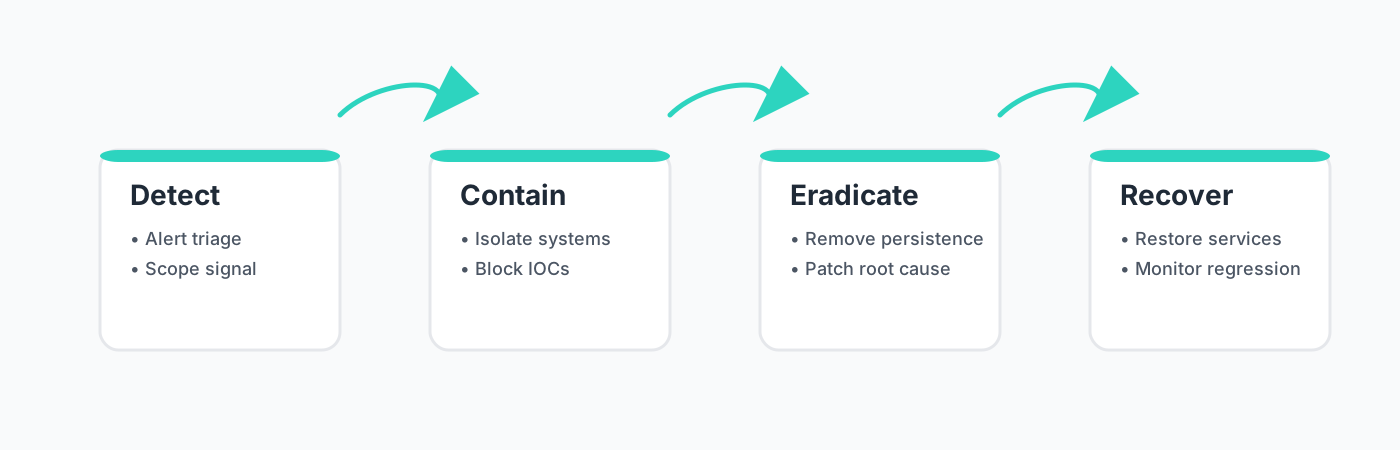
“Create an SVG showing an incident response workflow with four phases: Detect, Contain, Eradicate, Recover. Each phase should be a box, connected left-to-right, with smaller sub-steps inside.” Generate an inline SVG (1400×450) for a slide-ready process diagram. Four equal cards laid out left-to-right with generous spacing. Each card has rounded corners, white background, light gray border, and a thin teal accent bar at the top.
Titles and bullets:
- Detect: Alert triage, Scope signal
- Contain: Isolate systems, Block IOCs
- Eradicate: Remove persistence, Patch root cause
- Recover: Restore services, Monitor regression
Place smooth curved arrows above the cards to indicate flow. Use a modern sans-serif font and this palette: background #F9FAFB, text #1F2A37 / #4B5563, accent + arrows #2DD4BF.
Return only the SVG.
This keeps the request structural, not aesthetic.
Step 2: Generate Raw SVG
I explicitly ask for:
- Inline SVG
- No external libraries
- Clear grouping (
<g>tags) - Readable IDs and labels
What I get back is not “final art.”
It is machine-readable structure.
That distinction matters.
Output (SVG diagram):
Step 3: Treat the SVG Like Source Code
Once I have the SVG:
- I paste it directly into slides (PowerPoint, Keynote, Google Slides all support this)
- Or I open it in a text or vector editor
Now revisions are trivial:
- Change a label
- Resize a box
- Reorder elements
- Adjust spacing globally
No redrawing.
No alignment drift.
No fighting tools.
Why This Is a Cheat Code (Not a Shortcut)
This works because AI handles the part humans are worst at:
translating abstract structure into consistent geometry.
I am still:
- Deciding what belongs on the slide
- Judging clarity
- Rejecting bad layouts
- Refining emphasis
The leverage comes from collapsing iteration cost.
A diagram that used to take:
- 30–45 minutes to build
- 10 minutes per revision
Now takes:
- 2–5 minutes to generate
- Seconds to adjust
That delta compounds quickly.
Where This Breaks (And That’s Fine)
This approach is not magic.
It struggles with:
- Highly stylized branding
- Artistic illustration
- Marketing-grade infographics
That is acceptable.
Those are not the slides that slow operators down.
The Bigger Pattern
SVG generation is one instance of a broader shift:
- AI as a structural translator
- Text → artifacts
- Concepts → editable assets
The mistake is treating outputs as finished.
The leverage comes from treating them as source material.
That is the difference between novelty and utility.
Why I’ll Keep Using This
I do not use AI to “be creative.”
I use it to remove friction from work I already understand.
Generating slide-ready SVGs is the cleanest example I have found so far:
- High leverage
- Low risk
- Immediately reversible
- Easy to audit
Which, in practice, makes it one of the few AI workflows I trust in production.